A linear barcode represents numbers or text using a defined arrangement of bars and spaces. Similar-looking formats can accept different characters and lengths, and scanners may support different formats. Check the receiving system’s requirements before choosing one.
In this guide
- How bars relate to data
- Compare ten formats
- EAN, JAN and check digits
- Create, save and scan an example
- Checks before printing
What does a barcode number mean?
- Prepare the data Choose the identifier or text to record.
- Select a format Follow the scanner or receiving system’s requirements.
- Scan and compare Compare the extracted content with the input or records.
The characters below a barcode are for people to read. Turning that display off in this toolkit does not remove the data from the bars. Creating an image does not register a product name or price; the system using the code maintains that association.
QR codes use a two-dimensional grid. If you want to share a URL or a longer message with a smartphone, see the QR code guide.
Ten formats available here
These input rules describe this toolkit. If your workflow specifies a format and assigned number, use those requirements.
Formats, input rules and demonstration data
| Format | Accepted input | Example and use |
|---|---|---|
| EAN-13 | 12 or 13 digits | 4901234567894. A product-code format. A check digit is added to 12-digit input. |
| EAN-8 | 7 or 8 digits | 96385074. Use when the receiving system specifies this compact format. |
| UPC-A | 11 or 12 digits | 123456789012. Use when UPC-A is specified. |
| CODE128 | Letters, numbers and symbols | Toolkit-2026. Suitable for identifiers containing mixed characters. |
| CODE39 | Uppercase letters, numbers and supported symbols | ABC-12345. An option for uppercase identifiers. |
| ITF-14 | 13 or 14 digits | 12345678901231. Used for identifiers such as packaging-unit codes. |
| ITF | An even number of digits | 123456. An option for numeric identifiers. |
| Codabar | Numbers and supported symbols | A12345B. This example includes start and stop characters. |
| MSI | Digits | 1234567. Requires MSI-compatible equipment or software. |
| Pharmacode | Integers from 3 to 131070 | 1234. Requires compatible reading equipment. |
The examples are demonstration data for image generation, not evidence that the numbers are assigned or registered product identifiers. Narrow the choice by scanner support, whether letters are required and the allowed length.
EAN, JAN and check digits
JAN is the Japanese name for the EAN symbol, with standard 13-digit and compact 8-digit versions. It is not a reason to shorten an assigned number simply to fit a smaller label. GS1 Japan: JAN symbols
A check digit is the final digit calculated to help detect input errors. For 490123456789, the sum of odd positions from the left is 24 and even positions 34. 24 + 34 × 3 = 126; add 4 to reach a multiple of ten, giving 4901234567894. GS1 Japan: check digit calculation
This tool turns data into an image. It does not obtain company prefixes, allocate or register product identifiers, or certify acceptance by a retailer. Use properly assigned data and follow the requirements of the intended trading partner.
Create CODE128 and verify its content
- Open the CODE128 generator and enter
Toolkit-2026. - Start with the default bar width and height, leaving text visible for comparison.
- Save a PNG for general image use, or an SVG for a scalable graphic.
- Open the saved image in the scanner. Check that the detected format is CODE128 and the content is
Toolkit-2026.
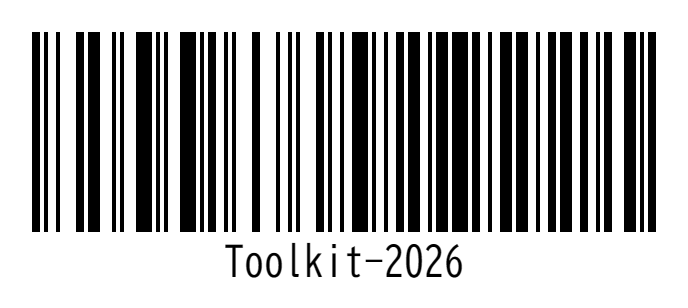
Decoded content: Toolkit-2026. Compare the actual decoded text, as well as the human-readable label.
The scanner on this site does not support MSI or Pharmacode. Verify those two formats using compatible equipment.
Check before printing for real use
- Keep the side margins and avoid reducing an image until its narrow bars become indistinct.
- A pixel size or bar-width setting alone does not prove compliance with a printing specification. Check physical dimensions and the receiving system’s requirements.
- Scan the saved image first, then the actual printed label. If only the print fails, check ink spread, reflections, scaling and margins.
- A visible number may still be rejected because its format or check digit is incorrect. Test with the scanner that will be used in practice.