A QR code records information such as a URL or message in a grid of small squares. In this toolkit, URL, Wi-Fi and contact are categories of content and intended use, rather than different barcode symbologies. This guide explains how to choose a tool, create an image and check what it contains.
In this guide
- How recording and scanning work
- Compare nine uses
- URL and Wi-Fi examples
- Error correction, color, size and margins
- Troubleshooting
A QR code contains information
- Enter content Supply a URL, network settings or contact details.
- Encode an image The information becomes a pattern of squares.
- Scan and interpret A device extracts the information and a compatible app handles it.
A URL code stores an address; a phone code stores text starting with tel:. The QR image does not itself make calls or send email. What happens after scanning depends on the device and app, and normally involves a user action or confirmation.
This site creates images in your browser. It does not operate a URL-shortening or redirect-management service. A saved QR image cannot be edited in place: create a new image if the recorded information changes.
Choose by what you want to share
QR code types and uses
| Type | Input | Use and checks |
|---|---|---|
| URL | Website address | Share a link. Include https:// and check the destination. |
| Wi-Fi | SSID, password and encryption | Share connection settings. Match the actual network configuration. |
| Phone | Phone number | Provide a number for a phone app to open. |
| SMS | Recipient number and message | Prepare a message. The user sends it. |
| FaceTime | Phone number or Apple Account | Requires a compatible device and app. |
| Recipient, subject and message | Prepare an email and check it in the chosen email app. | |
| Contact | Name, company, phone and email | Uses vCard. Check the fields in the importing app. |
| Calendar event | Title, start, end and location | Check how the receiving calendar interprets times and time zones. |
| Text | A message or note | Display content without specifying an app-oriented action. |
Create and check a code
A link to a website
- Open the URL generator and enter
https://example.com/toolkit?test=1as a demonstration. - Start with black on white and the default M error correction level.
- Save as PNG for general image use, or SVG for a scalable graphic.
- Open the saved image in the scanner and compare the extracted URL with your input.
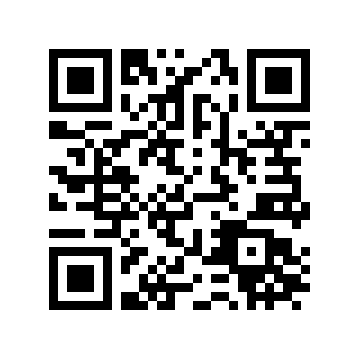
Decoded content: https://example.com/toolkit?test=1. This demonstration uses example.com. Save the image and check it with the scanner.
Guest Wi-Fi settings
Using the fictional SSID ExampleGuest, password sample-only and WPA encryption produces this content:
WIFI:T:WPA;S:ExampleGuest;P:sample-only;;In the Wi-Fi generator, replace these with your actual network settings. Choose no password only for an open network. A QR image does not conceal the password: anyone able to scan it can extract the settings, so consider who will receive it.
Settings that help scanning
Error correction
L, M, Q and H provide different levels of recovery from damage. Stronger correction may produce a denser code. Start with M and test in the intended environment; it does not guarantee that any covered area can be recovered.
Color, margins and size
A small square is a module. Standard QR codes need a clear four-module margin on every side. Images from this toolkit include a margin; keep it when cropping or placing them. Start with black on white.
The px setting controls image dimensions, not its final physical print size. For long content, reduce unnecessary text rather than squeezing a dense image into a tiny area. Test at the size, distance and lighting that people will actually use.
If scanning or the expected action fails
- Check for blur, missing margins or insufficient contrast.
- Scan the original saved file first. If that works but the printed copy does not, review scaling, printing and reflections.
- If the content decodes but no app opens, check the recorded content separately from device support. Text content is not guaranteed to trigger an app action.
- Check contacts and events before importing. This toolkit does not attach a time zone to event times, so verify the start and end in the receiving calendar.
Check a saved QR image / Choose a QR generator / Understand and choose barcodes